Auto-tap based on on-screen text (OCR), no coding
An app you use every day pushes an update, the buttons get a fresh coat of paint, and the automation you spent an evening building is suddenly tapping the wrong things. If you have built anything on fixed coordinates, you know that feeling.
Here is what we keep noticing while building TapEzy: the artwork moves, the layout moves, the icons get a seasonal reskin — but the words stay exactly where they were. “Claim” is still “Claim” three years later. A status readout like “Stamina 30/60” keeps its format long after the panel around it has been redesigned.
So instead of memorising coordinates or matching a screenshot, you tell the auto clicker which words to watch for and what to do when they show up. In TapEzy that is the Text Detection step. No root, no scripting.
The problem with tapping coordinates
A plain auto clicker repeats a touch at a fixed position after a fixed delay. It cannot tell the difference between the button you want, a loading placeholder, and a completely different screen.
So it misfires whenever reality drifts from the script:
- The screen takes longer than usual to load, and the tap lands early.
- A banner or dialog shifts everything down by a hundred pixels.
- The same routine runs on a phone with a different screen size, and every coordinate is now slightly wrong.
- Two screens look similar, and the clicker happily taps the wrong one.
Longer waits make it slower without making it correct. What you actually need is a condition.
Why text is often the best thing to detect
TapEzy can react to Image Detection, Text Detection, Screen Element Detection and Number Detection. Text is the strong choice when:
- The wording is stable but the visuals are not. Buttons get redesigned far more often than they get renamed.
- The target is one of several similar-looking items. A row of identical cards is impossible to distinguish by shape, and trivial to distinguish by the text on it.
- You want to still understand the scenario later. “Wait for ‘Claim’, then tap it” reads the same way in six months. A coordinate does not.
If your target is purely visual — an icon, a coloured badge, a shape with no label — Image Detection is the better tool. That workflow is covered in Auto clicker with image detection: tap when an image appears.
What you need
- An Android device, unrooted.
- TapEzy from Google Play.
No code, no extra hardware and no PC to plug into. Image detection and text detection are free to use — the free plan does limit how many scenarios you can keep at the same time, which is plenty for everything in this guide.
TapEzy also comes with practice screens, so you do not need another app to practise on: the walkthrough below works on the form under Settings → Launch Practice Screens → Screen Element Detection.
Step by step: tap when specific text appears
This is the shape of the job rather than a click-by-click script; the tutorial linked below covers that. What matters here is what each step is for.
1. Open the practice form
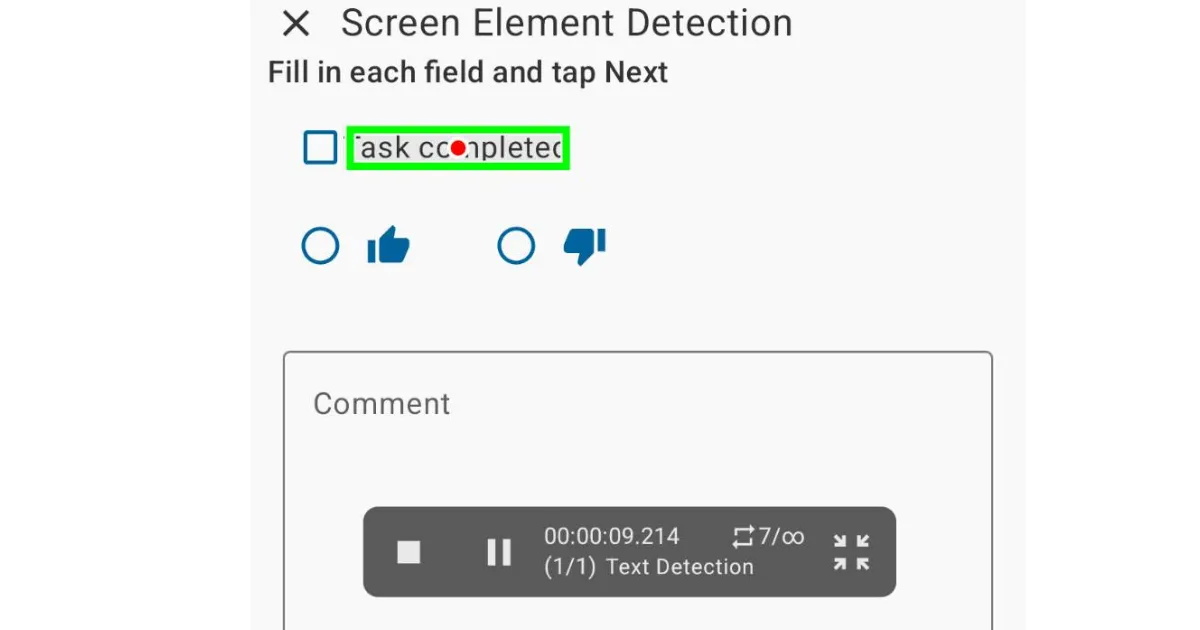
Go to Settings → Launch Practice Screens → Screen Element Detection. You get a small input form: a Task completed label with a checkbox next to it, a Good/Bad rating, a Comment field, and a Next button. The screen is named after Screen Element Detection, but it works just as well as a target for reading the words on the screen, which is what we are doing here.
There is nothing worth writing down as a coordinate on a form like this. What identifies each control is the text printed beside it.
2. Create a scenario and enter the text to find
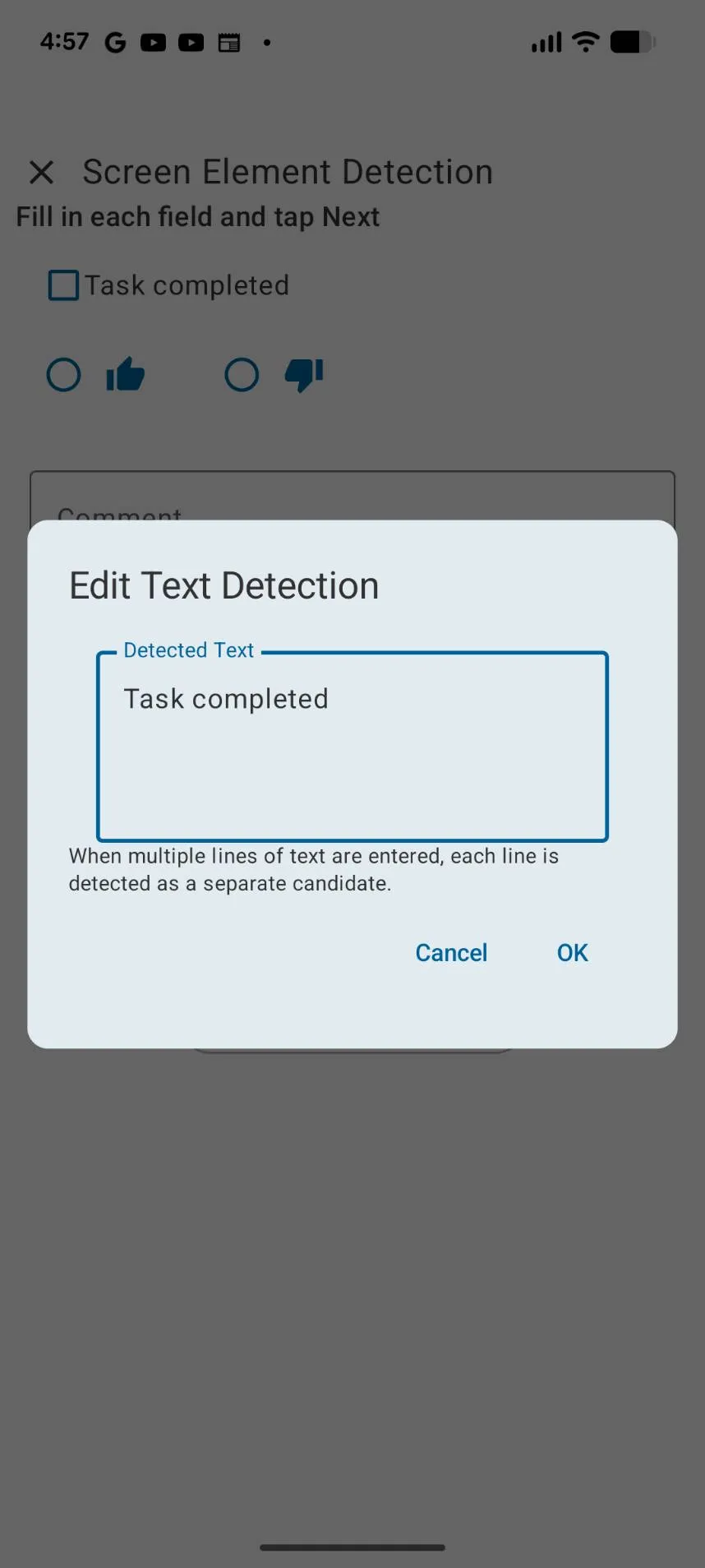
Tap + in the scenario list, name it in the Add Scenario dialog, then Add Step → Text Detection. In Edit Text Detection, type the words into Detected Text — for the practice form, Task completed.
Two things are worth knowing here:
- Multiple lines mean multiple candidates. Each line is treated as a separate candidate, which is the clean way to say “tap whichever of these appears first”.
- Shorter is safer, up to a point. A long exact phrase gives OCR more chances to disagree with you over a comma or a line break. A short, distinctive fragment usually matches more reliably — as long as it is distinctive enough not to appear elsewhere.
There is also Restrict to Element-Level Matching. Turn it on and a match only counts when a whole recognised element matches, which stops a fragment inside a word or block from counting. A standalone word inside a longer sentence is still an element, though, and can still match. Where the recogniser draws those boundaries depends on the screen, so check the result on your own target.
3. Set the Detection Area
Detection Area narrows the region TapEzy scans. Set it whenever the target only ever appears in one part of the screen: scanning less is faster, and it stops the same word elsewhere from stealing the match.
The practice form demonstrates the failure immediately. Aim at Next and the instruction line at the top — Fill in each field and tap Next — contains the same word, so either one can win. Restrict to Element-Level Matching thins out the candidates, but a word in that sentence may well be its own element too. The reliable fix is drawing the Detection Area tightly around the button.
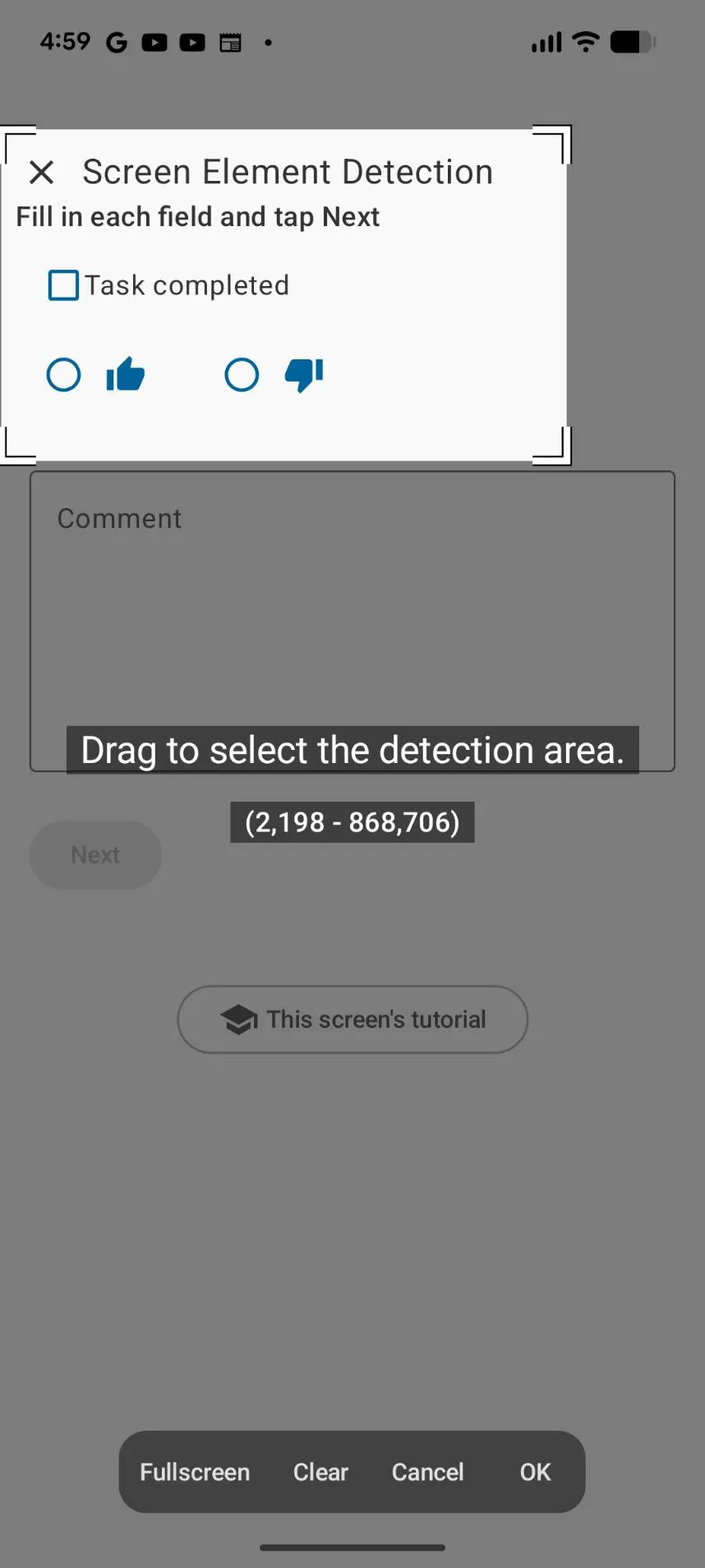
One thing to expect: Next stays disabled until you tick Task completed and pick Good or Bad. Use Task completed to confirm that tapping works, and read the Next example as an illustration of why the Detection Area matters.
4. Handle the hit and the miss
Actions on Successful Detection already contains Tap Detected Text from the moment you add the step. The tap targets wherever the text was recognised, so it keeps working when the item moves — on the practice form it taps the words Task completed and the checkbox beside them flips. For a swipe, a drag or a long press instead, use Gesture at Detected Location.
Then give Detection Timeout enough room for the slowest load you realistically expect. Actions on Detection Failure can stay empty: with nothing set there, a miss just moves on to the next step, and since this scenario has only one step, the next repeat takes it back to the start and tries the detection again — enough when you are just waiting for the text to appear. Add a fallback — stop playback, retry from an earlier step, or tap a recovery target such as a close button — when a particular scenario calls for it.
5. Set the repeat count and play
Open Scenario Settings, set Repeat(0 is infinite) — 0 keeps it running until you stop it manually — then play and grant the screen capture permission when Android asks.
Set the repeat to 0 on the practice form and the checkbox ticks and unticks over and over. It is the easiest way to see with your own eyes that the detection and the tap are both landing.
When detection is unreliable
Text recognition depends on the font, the size, the contrast and the device, so results vary and will not be flawless everywhere.
Two things move the needle more than anything else, and you have met both already: keep Detected Text short, and narrow the Detection Area. Change one thing at a time and re-test on the practice screen — it gives you a repeatable target, so you can tell whether an adjustment genuinely improved things.
For symptom-by-symptom fixes, the official guide has Tuning When Detection Does Not Work — it also covers when to use Restrict to Element-Level Matching and what to do when the screen rotates.
Want the click-by-click version?
This article is about why reading the screen beats memorising coordinates. If you would rather follow along on your own device, the official tutorial has Lesson 6: Text Detection.
Be aware that it uses a different stage. Lesson 6 works on the practice screen actually named Text Detection: twelve cards labelled #A, #B and #C in a 4×3 grid, reshuffled every round. Those cards respond to dragging, not tapping — Tap Detected Text does nothing there. The puzzle is to drag two cards with the same label on top of each other.
That makes it the right place to learn a different action. Lesson 6 detects #A and uses Drag Between Detected Targets, which drags from the first match to the second. Read this article for the idea, then take the tutorial for the hands-on version and the drag variant.
FAQ
Can it look for several pieces of text in sequence?
Yes. Add as many Text Detection steps as you need and they run in order. A single step can also hold several lines for a “whichever appears first” match, and scenario control steps let you jump or loop based on what was found. The official guide’s Tuning When Detection Does Not Work walks through this too.
Does it work with languages other than English?
Yes. Latin-script text is handled by default, and if the Detected Text you enter contains Japanese characters, TapEzy switches to a Japanese recogniser automatically — there is no setting to flip. Accuracy still depends on the font, the size and the contrast, so heavily stylised typefaces and very small text can be missed. When that happens, shortening Detected Text is the first thing to try.
Do I need root or a PC?
Neither. Install from Google Play, grant accessibility permission, and it runs.
Text Detection or Screen Element Detection?
Start with the common misconception: Screen Element Detection can match on text too. Its match conditions include Text Content, Contained Text and Description, and the Match setting gives you Exact match, Contains, Starts With, Ends with and Number condition. So “there are words on screen, therefore Text Detection” is not the rule.
The real dividing line is whether those words exist as a real control, or are simply painted into a picture. A button or an input field that was built as a proper control carries its label with it, and Screen Element Detection can read that label directly. Games are the usual exception: much of the screen is drawn as artwork, so what looks like a labelled button is really part of an image, with no control underneath. That is where Text Detection (OCR) earns its keep — it reads what is displayed rather than what is behind it.
As a rule of thumb: if the app draws its screens and buttons as artwork, the way most games do, use Text Detection; for ordinary apps, try Screen Element Detection first. Screen Element Detection also needs no screen capture permission, so it works with scheduled playback.
When you are unsure, test it: point Screen Element Detection at the control you want and see whether it finds it. If it comes up empty, switch that step to Text Detection.
How much battery does this use?
Reading the screen repeatedly costs more than plain tapping. Narrowing the Detection Area is the most effective fix. If the service stops mid-run, your device’s battery optimisation is often the cause — excluding TapEzy from battery optimisation in your device’s settings makes it far less likely to be shut down part-way through.
Can I schedule a scenario to run on its own?
There is a scheduled playback feature, but scenarios containing Text Detection or Image Detection will not run from it. Both need screen capture, which is not available to scheduled playback. If you need something time-triggered, look at Screen Element Detection, which does not require capture at all.
Beyond a single tap
Once a step can read the screen, a few more doors open. Number Detection reads a numeric value, so a scenario can act on a threshold — “when stamina goes above 50” — rather than a plain match. Branching steps let one scenario take different paths depending on what was found, and Lua scripting is available if you want fine-grained control.
You do not need any of that for the scenario above — it is one step, two settings and an action. But it is there, at no extra cost, when a routine outgrows the simple version.
Wrapping up
If you want automation that survives a redesign, build it on the words that are printed on the screen.
Keep Detected Text short, draw the Detection Area around the spot you care about, and put Tap Detected Text on success. Those three already clear most of what breaks a coordinate-only clicker. Actions on Detection Failure can stay empty — in a one-step scenario like this one, a miss simply comes around again on the next repeat — and you can add a fallback later if you need one.
Build one against the practice form. Five minutes with it does more than another five minutes of reading.
Related
- Auto clicker with image detection: tap when an image appears — the same approach for visual targets
- TapEzy overview — what the app does and its main features
- Lesson 6: Text Detection (tutorial) — the hands-on version, including drag actions
- Tuning When Detection Does Not Work (guide) — symptom-by-symptom fixes, plus detecting several targets in sequence