Auto clicker with image detection: tap when an image appears
You set up a normal auto clicker, start it, and watch it work perfectly for about ninety seconds. Then a banner loads, the layout drops forty pixels, and every tap after that lands on empty background. So you sit there watching a phone tap nothing — which is the exact thing you were trying to stop doing.
We hit this wall constantly while building TapEzy. The fix is never a faster tap. It is a tap that waits for something to actually be on screen.
This guide walks through building an auto clicker that looks at the screen, finds a character icon, and taps wherever it turned up — using TapEzy’s Image Detection. No root, no scripting.
Why coordinate-only auto clickers miss
A coordinate tap is a blind instruction: “touch x=540, y=1180 in 500 ms.” It has no idea what is drawn there. In practice, four things break it:
- The button has not finished loading, so the tap fires into a spinner.
- An ad slot or a notification moves your target by a few dozen pixels — close enough to look right, far enough to miss.
- The same scenario runs on a phone with a different resolution and every coordinate is now slightly wrong.
- The thing you are hunting for simply is not in the same place it was last round.
You can paper over the first two with long fixed waits. That makes the whole routine slow and still fails on the day the app is slower than your guess. As long as you are solving this with timing, you are gambling.
What screen detection changes
Detection flips the logic around. Instead of “tap here at this time”, the step says “wait until this thing appears, then tap wherever it appeared.”
That one change removes most of the fragility. Slow loading stops mattering, because the step keeps looking. A shifted layout stops mattering, because the tap follows the image. And when the image never shows up at all, you get to decide what happens next instead of tapping blindly into whatever is there.
TapEzy offers Image Detection, Text Detection, Screen Element Detection and Number Detection. This article covers Image Detection, which is what you want when the target has no text to read: a character portrait, a building icon, an item thumbnail, a coloured badge.
What you need
- An Android device (no root required).
- TapEzy installed from Google Play.

There is no extra hardware to buy and no PC to plug into. Image detection and text detection are free to use — the free plan does limit how many scenarios you can keep at the same time, which is plenty for everything in this guide.
TapEzy also comes with practice screens, so you do not need another app to practise on: the walkthrough below builds an Image Detection scenario on one of them.
Step by step: tap when an image appears
What follows is the shape of the job, not a click-by-click script — the tutorial linked further down handles that part. Here you just need to see what each step is for and why it is there.
1. Open the practice screen and see what makes this hard
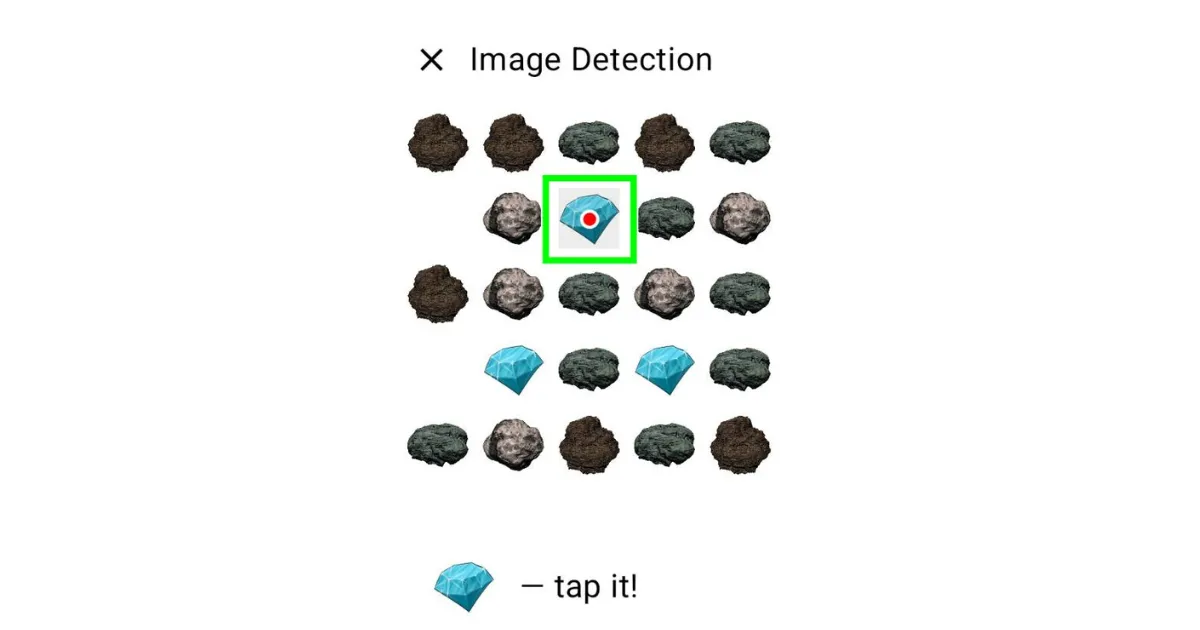
Launch Settings → Launch Practice Screens → Image Detection. Twenty-five stones fill a 5×5 grid, five of them are gems, and tapping a gem clears it.
The point is that the gems land in different squares every round. Writing down coordinates gets you nowhere — the same situation as hunting for one particular character or item on a busy game screen. This is precisely what image matching is for.
2. Create a scenario and register the image to look for
Tap + in the scenario list, name it in the Add Scenario dialog, then Add Step → Image Detection. From there, Select image lets you either Capture Screen on the spot or pick a screenshot with Select from Gallery, and you drag to select the area to use.
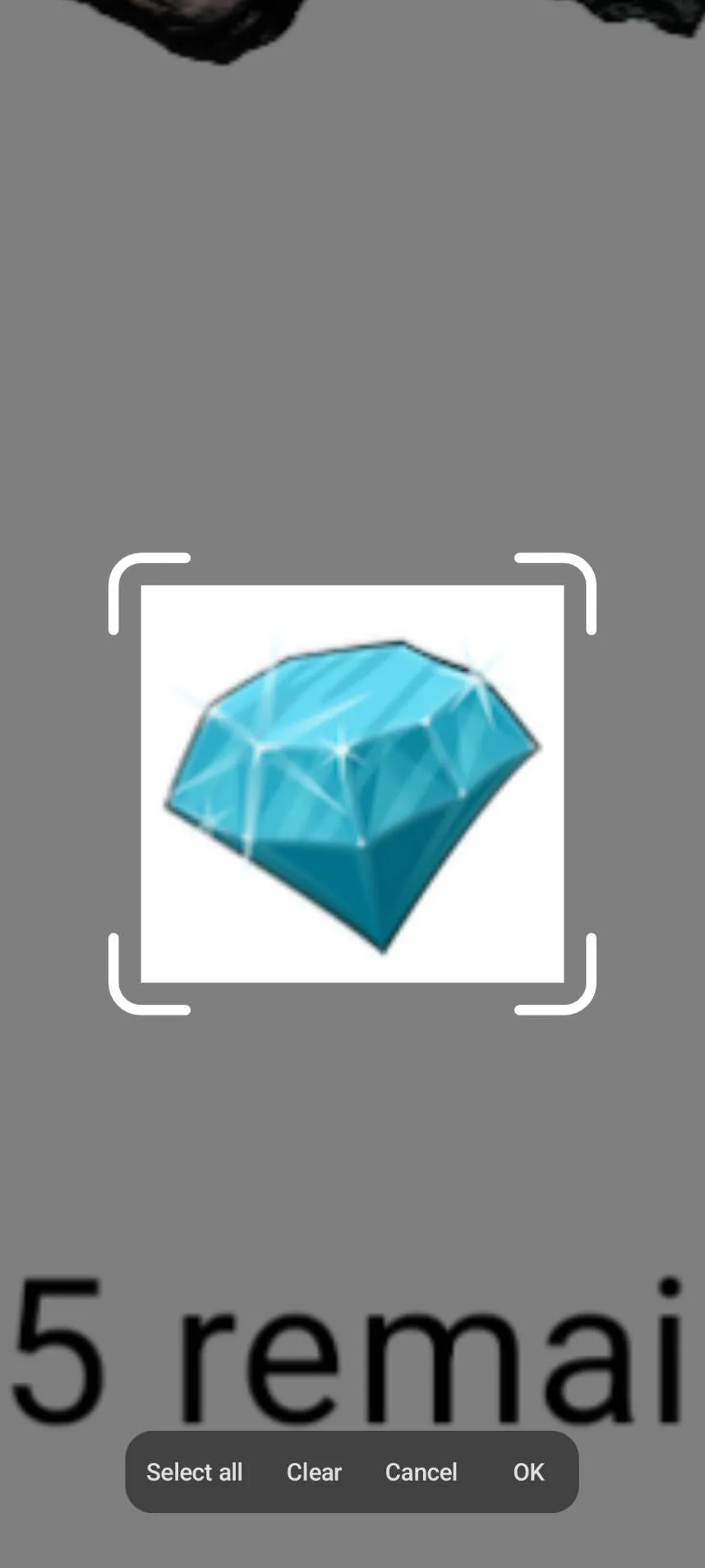
This is the single step that decides whether the rest works. In our own testing, unreliable detection almost always traced back to the reference image rather than to any setting. Two rules cover most of it:
- Crop tight. Keep the character’s face, or the distinctive silhouette of the building, and little else. Every extra pixel of background is noise.
- Leave out anything that changes. A level badge or a “12 remaining” counter stops matching the moment the number ticks over.
3. Decide where to look and what to do on a hit
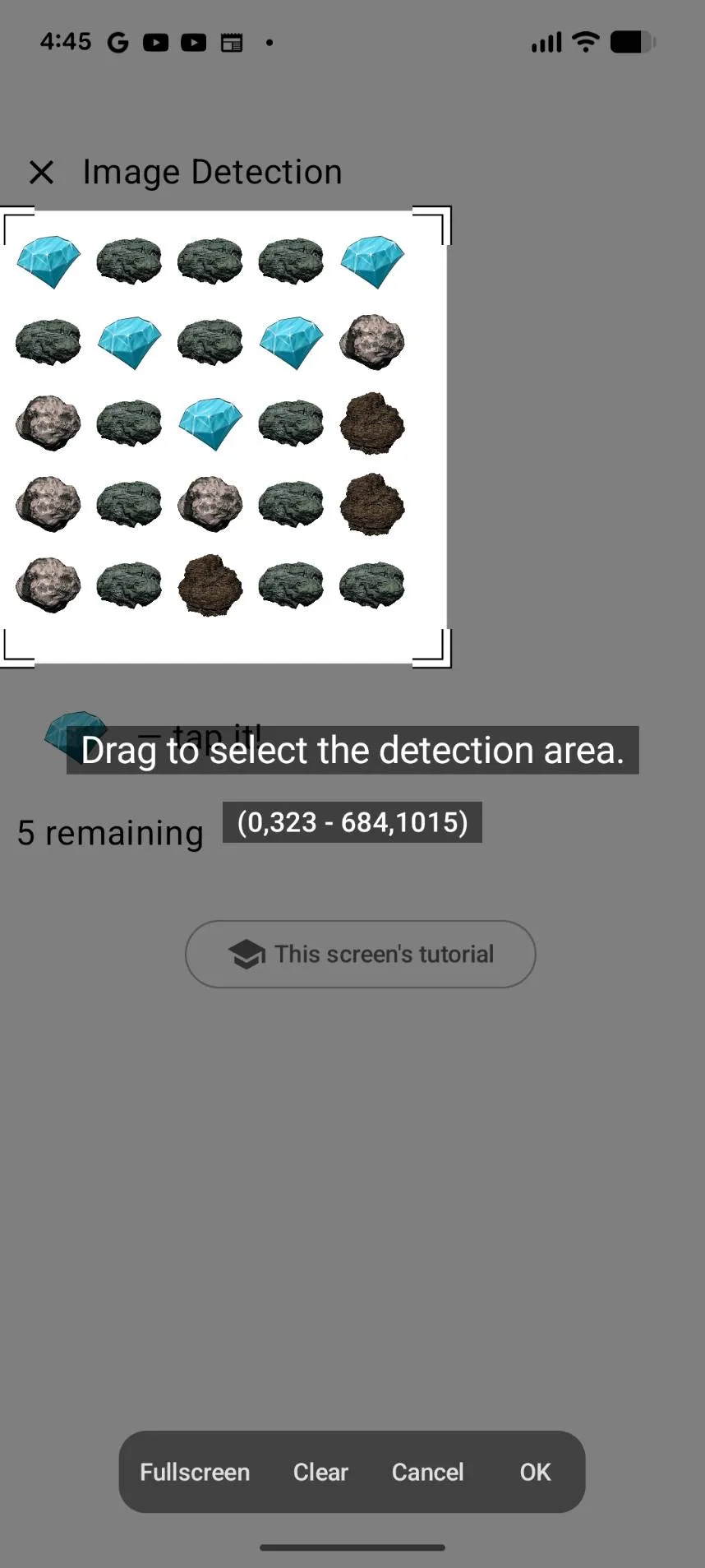
Detection Area limits where on the screen TapEzy searches. The full screen works, but narrowing it to the region where your target can appear makes detection faster and stops a similar-looking element elsewhere from matching by accident.
Actions on Successful Detection already contains Tap Detected Image from the moment you add the step, so there is nothing to wire up. This is the part that makes the automation position-independent: the tap is aimed at wherever the image was found, not at a coordinate you wrote down earlier. If you need a swipe, a long press or a drag instead, use Gesture at Detected Location.
4. Decide what happens on a miss, then play
Detection Timeout is how long the step keeps looking before giving up. Set it a little longer than the slowest load you realistically expect.
Actions on Detection Failure can stay empty. With nothing set there, a miss simply moves on to the next step — and because this scenario has only one step, there is no next step to move to, so the repeat you set in the next paragraph takes it back to the start and tries the detection again. That is all you need when you are simply waiting for the target to show up.
Fill it in when the default is not what you want: end playback after the target never appears, tap a close button to recover from an unexpected screen, or jump back to an earlier step and retry.
Finally, open Scenario Settings and set Repeat(0 is infinite) — 0 keeps going until you stop it manually. Play it, grant the screen capture permission when Android asks, and watch it find the target wherever it lands.
When detection is unstable
Detection quality depends on the screen, the device and the reference image, and it will not be perfect on every combination.
Two things move the needle more than anything else, and you have met both already: crop the reference image tight, and narrow the Detection Area. Change one thing at a time and re-test on the practice screen — it is a neutral, repeatable target, so you can tell whether a change actually helped before you point the scenario at real work.
For symptom-by-symptom fixes, the official guide has Tuning When Detection Does Not Work.
Want the click-by-click version?
This article is about why coordinates fail and detection does not. If you would rather follow along on your own device, or you want the settings covered in more depth, the official tutorial has Lesson 5: Image Detection.
It uses the same stones-and-gems practice screen as this guide, with screenshots and video for every step, so nothing is left to guess. Read here for the idea, open the tutorial when you sit down to build it.
FAQ
Can it look for several images in sequence?
Yes. Add as many Image Detection steps as you need and they run in order. Scenario control steps let you jump to another step or loop back to the beginning based on what was found. The official guide’s Tuning When Detection Does Not Work walks through this too.
Do I need root or a PC?
Neither. Install from Google Play, grant accessibility permission, and it runs.
Image Detection or Text Detection?
If the target has words on it, use Text Detection. If it is a pure icon or artwork, use Image Detection. When a button gets restyled but keeps its label, Text Detection ages better.
How much battery does this use?
Detection repeatedly compares the screen against your reference image, so it costs more than plain tapping. Narrowing the Detection Area is the most effective fix. Separately, if the service stops mid-run, your device’s battery optimisation is often the cause — excluding TapEzy from battery optimisation in your device’s settings makes it far less likely to be shut down part-way through.
Can I schedule a scenario to run on its own?
There is a scheduled playback feature, but scenarios containing Image Detection or Text Detection will not run from it. Both need screen capture, which is not available to scheduled playback. If you need something time-triggered, look at Screen Element Detection, which does not require capture at all.
What else detection can do
Image Detection is the most visual option, but it is not the only one:
- Text Detection reads the characters on screen, so you can trigger on wording rather than pixels. Full walkthrough in Auto-tap based on on-screen text (OCR), no coding.
- Screen Element Detection matches the underlying UI element instead of the picture, and does not need screen capture permission.
- Number Detection reads a number on screen, which opens the door to conditional routines. Combined with branching steps and, for advanced users, Lua scripting, scenarios can get quite elaborate.
None of that is required for what we built above. It is there, at no extra cost, when a routine outgrows the simple version.
Wrapping up
The whole thing comes down to one shift: stop telling your phone where to tap, and start telling it what to wait for.
Crop the reference tight, narrow the Detection Area, add Tap Detected Image on success. That already clears most of what breaks a coordinate-only clicker. Leaving Actions on Detection Failure empty is fine — in a one-step scenario like this one, a miss just comes around again on the next repeat — and you can add a failure path later if a scenario needs one.
Build one scenario on the practice screen — it takes about five minutes, and everything you learn there transfers straight to the app you actually care about.
Related
- Auto-tap based on on-screen text (OCR), no coding — the same approach, triggered by words instead of images
- TapEzy overview — what the app does and its main features
- Lesson 5: Image Detection (tutorial) — the complete, click-by-click walkthrough
- Tuning When Detection Does Not Work (guide) — symptom-by-symptom fixes, plus detecting several targets in sequence